Most connection problems come down to two things: which video ports the laptop really has, and whether its USB-C port can carry video at all.
Step 1: look at the laptop's ports
- HDMI: the simplest. One HDMI cable to the monitor or TV.
- USB-C: only some carry video. Look for a small DisplayPort symbol (a D with a line) or a Thunderbolt lightning bolt next to the port, or check the laptop's specs for "DisplayPort Alt Mode" or "Thunderbolt 3/4". A USB-C port that only charges and transfers data won't show a picture through any adapter.
- DisplayPort or Mini DisplayPort: common on business laptops and desktops.
Step 2: look at the screen's inputs
Monitors usually have HDMI and DisplayPort, sometimes USB-C; older ones have VGA. TVs have HDMI.
Step 3: pick the cable or adapter
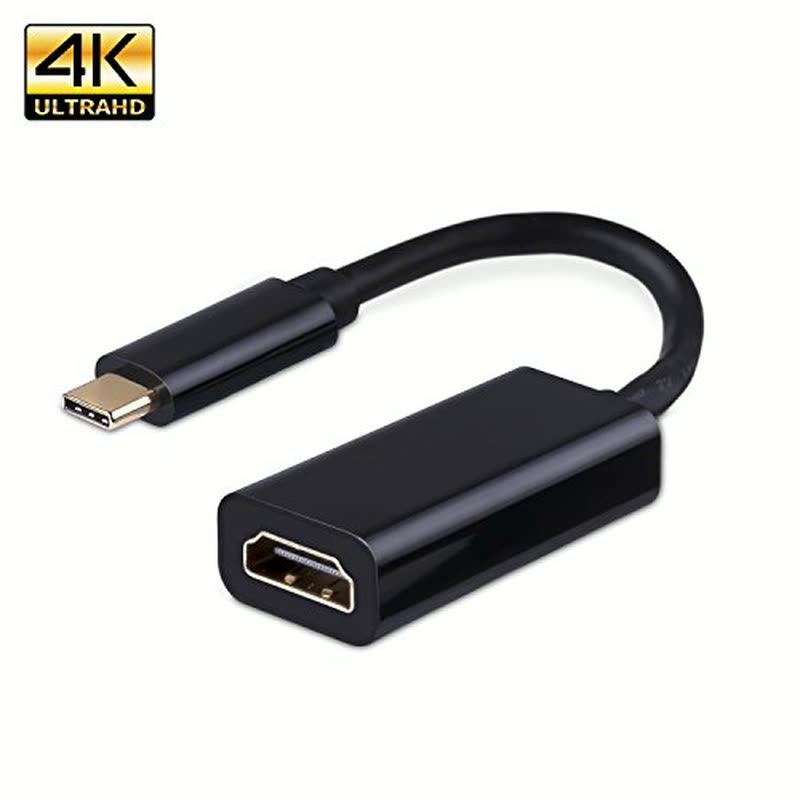
- USB-C laptop to HDMI screen: a USB-C to HDMI adapter, 4K at 60 Hz.
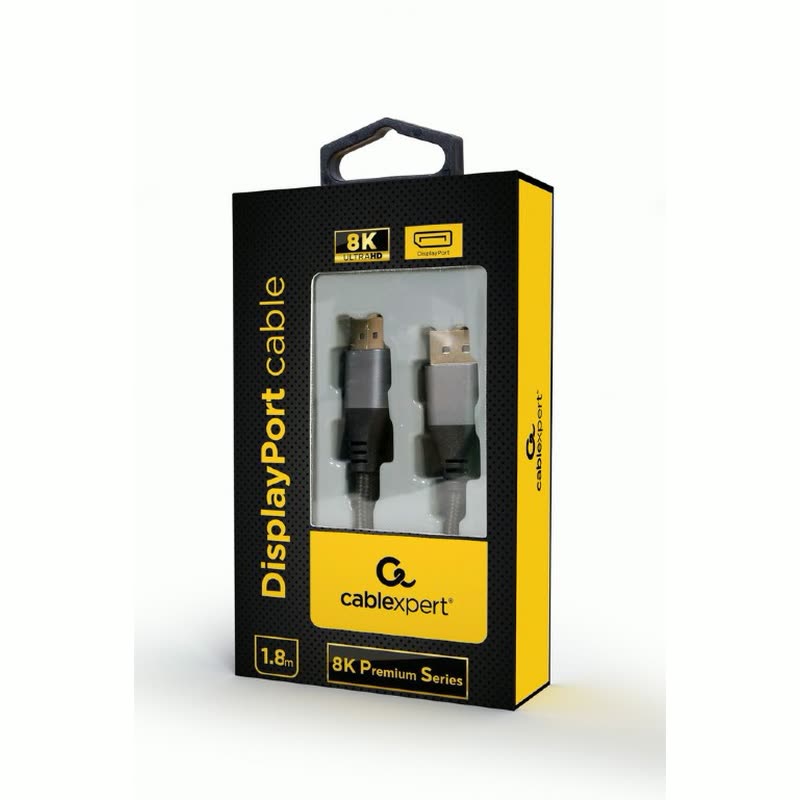
- USB-C laptop to DisplayPort monitor: a USB-C to DisplayPort cable.
- DisplayPort computer to HDMI screen: a DisplayPort to HDMI adapter. These work one way only, from DisplayPort to HDMI.
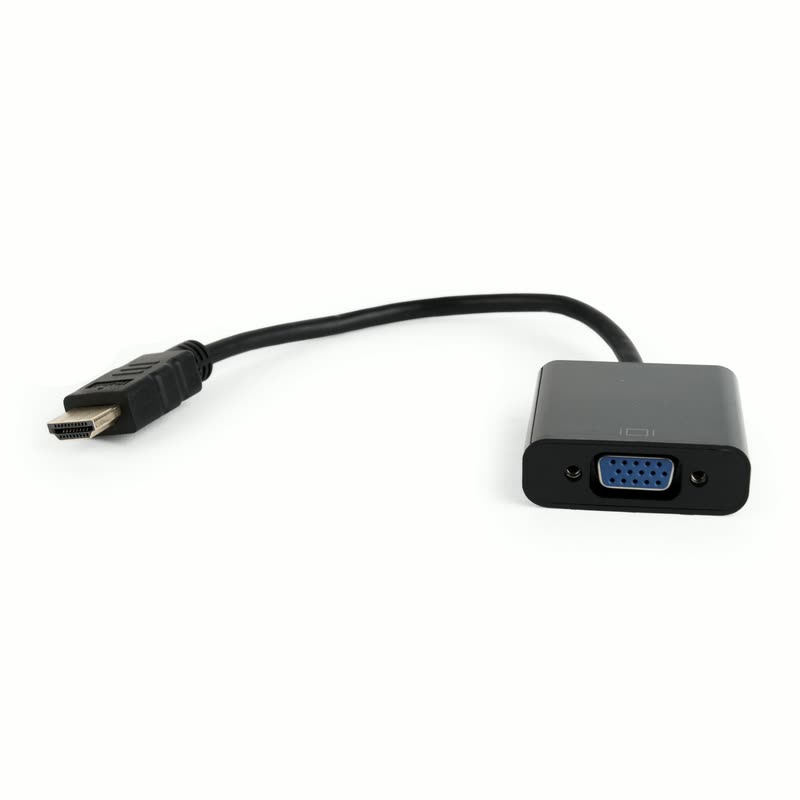
- HDMI to an older VGA monitor: an HDMI to VGA adapter.
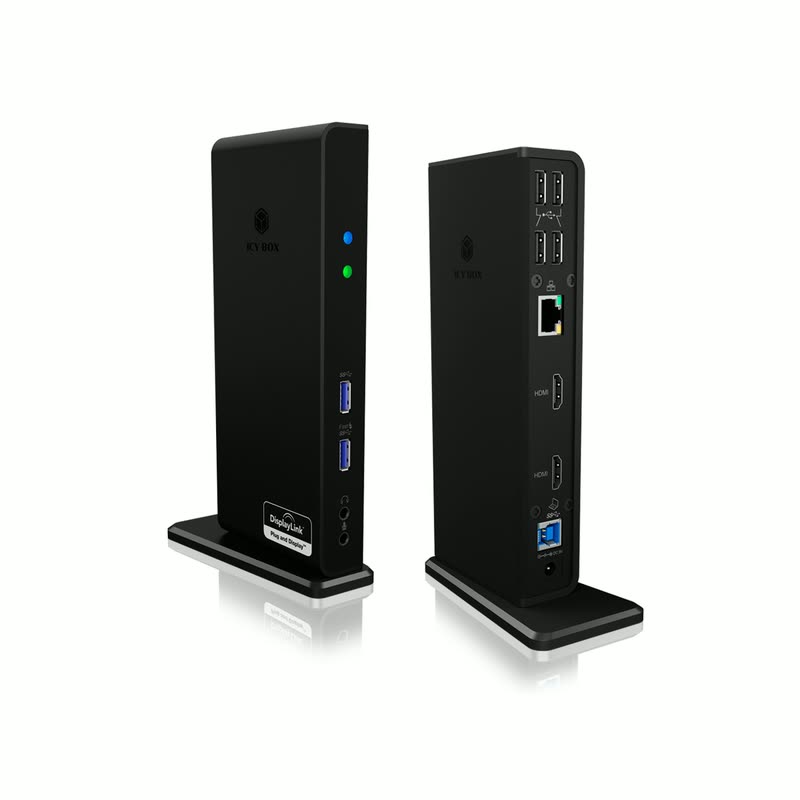
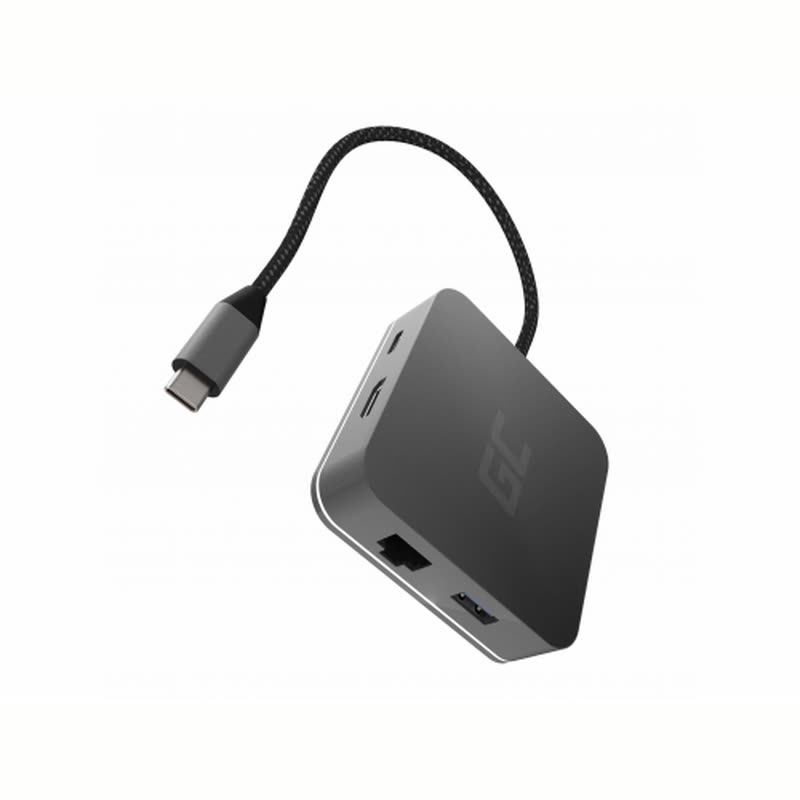
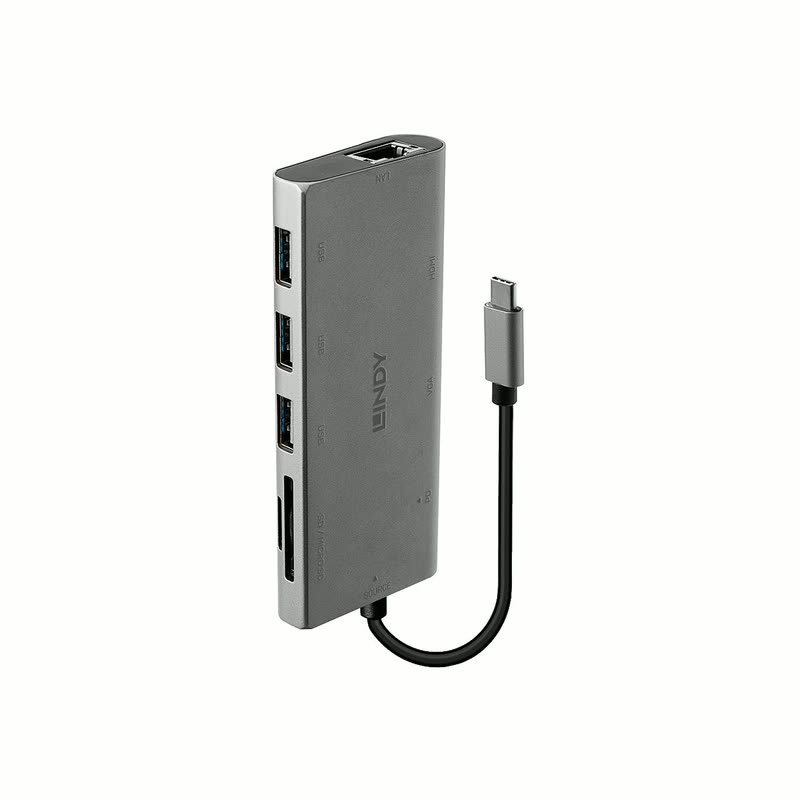
- Two screens, a network port and charging through one plug: a USB-C docking station. Check how many screens it drives and at what resolution.
All our cables and adapters.
Still no picture?
- Pick the right input on the monitor or TV (HDMI 1, HDMI 2, DisplayPort).
- On Windows press Windows + P and choose Duplicate or Extend.
- Try another cable: a damaged or very long cable is a common cause.
- For 4K at 60 Hz, use an HDMI 2.0 or newer cable and port.
Will a USB-C to HDMI adapter work with my phone?
Only if the phone supports video over USB-C; many don't.
Can I run two monitors from one laptop?
Yes, with two video ports, or a dock with two video outputs that the laptop supports.
Not sure which one you need?
Bring the laptop to our shop in Ħamrun and we'll try it with you.